
How sending a photo to a home screen works
Messaging apps put a photo in a chat thread, where it sits behind a notification and gets buried by the next message. A home screen photo widget works differently: the person you send it to has a widget on their phone, and your photo appears inside it as soon as it arrives. They see it the next time they unlock their phone, without opening anything.
You cannot push a photo onto a stranger’s phone, and that is the point. Sending to someone’s home screen only works when both of you use the same widget app, you are connected, and they have chosen to put the widget on their home screen.
What you need
With DuoFrame, you need four things:
- Two Android phones with DuoFrame installed from Google Play.
- An account for each person, with Google sign-in or email.
- An accepted friend invitation between you. Invite by email or share your invite link.
- The DuoFrame widget on the recipient’s home screen.
Send your first photo
Once you are connected, sending takes a few seconds.
- Open DuoFrame and take a photo, or pick one from your gallery.
- Add a short caption if you like.
- Choose who receives it: one person or several friends.
- To keep it on their widget for longer, turn on Keep on their widget. It then stays until you send your next photo.
- Tap send. The photo appears on their widget and their phone lets them know a new snap has arrived.
What the other person sees
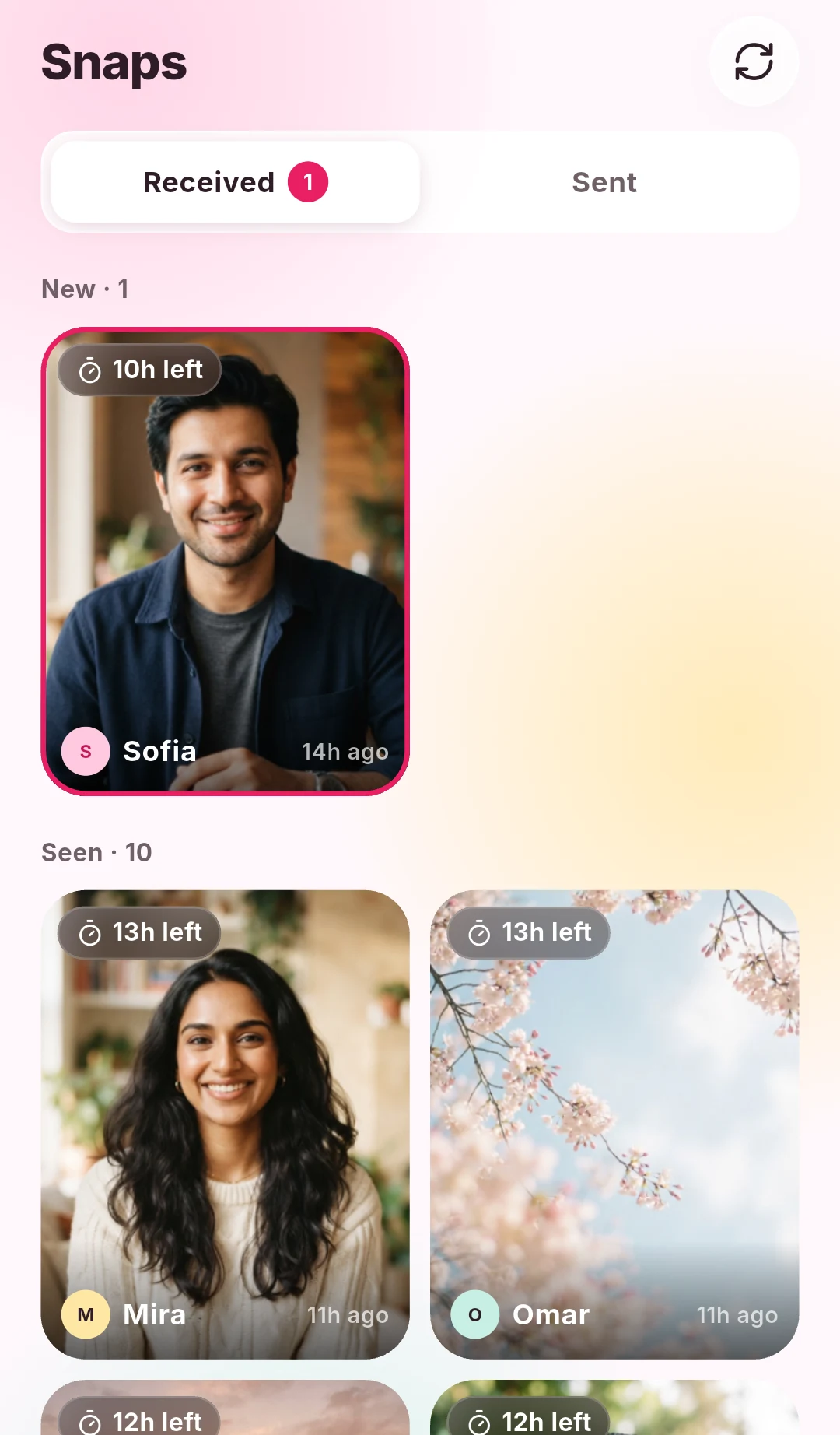
Your photo fills their DuoFrame widget, with your name, your caption and how long ago it was sent. If they have a widget just for you, your photos always land there. If their widget is set to Everyone, it shows the latest photo from any of their friends.
Tapping the widget opens DuoFrame, where they can see the photo full size, react with an emoji, or save it to their own gallery. Snaps expire 24 hours after they are sent unless you chose to keep them on the widget.
Good home screen manners
A photo on someone’s home screen is more personal than a message in a chat, so a few habits help:
- Ask before you invite someone, and let them choose where the widget goes.
- Send everyday moments, not a stream of photos. One or two a day is plenty.
- Check your recipients before sending anything meant for one person only.
- Remember that disappearing photos can still be screenshotted, so only send what you are comfortable sharing.
If your photo does not show up
First, ask whether the photo appears in their DuoFrame app. If it does, the widget is probably being held back by their phone’s battery settings; our guide to fixing a photo widget that is not updating on Android has steps for Samsung, Pixel, Xiaomi and OnePlus.
If it does not appear in the app either, check that you are still connected as friends and that you both have an internet connection. Sending a photo straight to someone’s home screen should take only a moment once everything is set up.