
What a shared photo widget does
A regular photo widget displays a picture you choose. A shared photo widget displays pictures sent by your friends. DuoFrame brings those everyday snaps to your Android home screen, so a small moment can be waiting next to your usual apps.
Start by installing DuoFrame from Google Play and opening it. Sign in, then invite someone you want to share photos with. Both people need an account, and your friend needs to accept the invitation before you can exchange snaps.
Add DuoFrame to your home screen
These are the standard Android widget steps. The wording can vary by phone brand and launcher. Leave enough empty space on the home screen for the widget.
- Touch and hold an empty area of your home screen.
- Tap Widgets in the menu that appears.
- Find DuoFrame in the widget list.
- Touch and hold its photo widget, then drag it onto the home screen. Some launchers use an Add button instead.
- If your launcher allows resizing, touch and hold the widget and adjust its edges.
Send the first photo
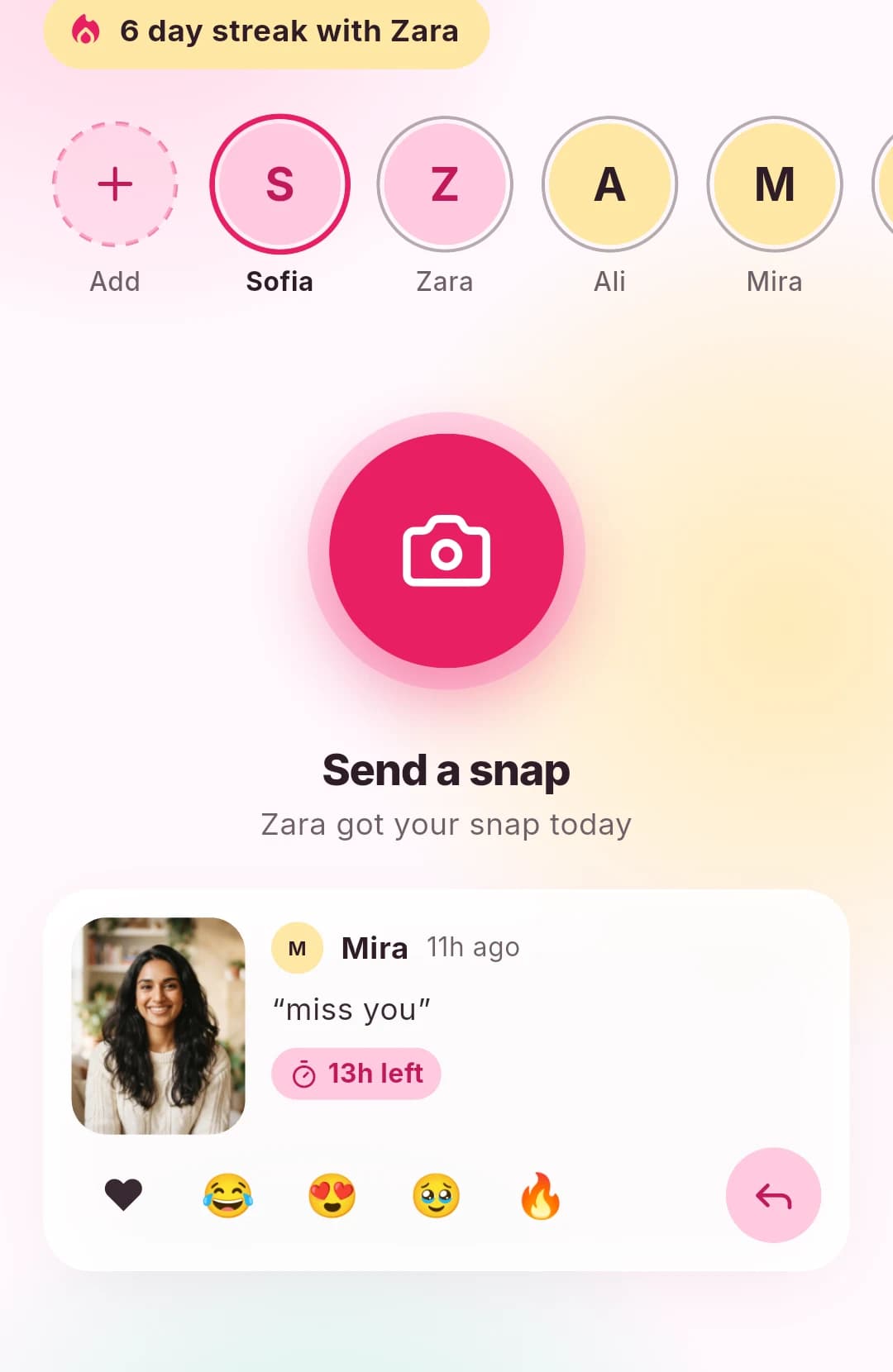
Open DuoFrame, take a photo, and add a caption if you want. Choose the friend or friends who should receive it, then send. Ask your friend to send one back so you can check your own widget.
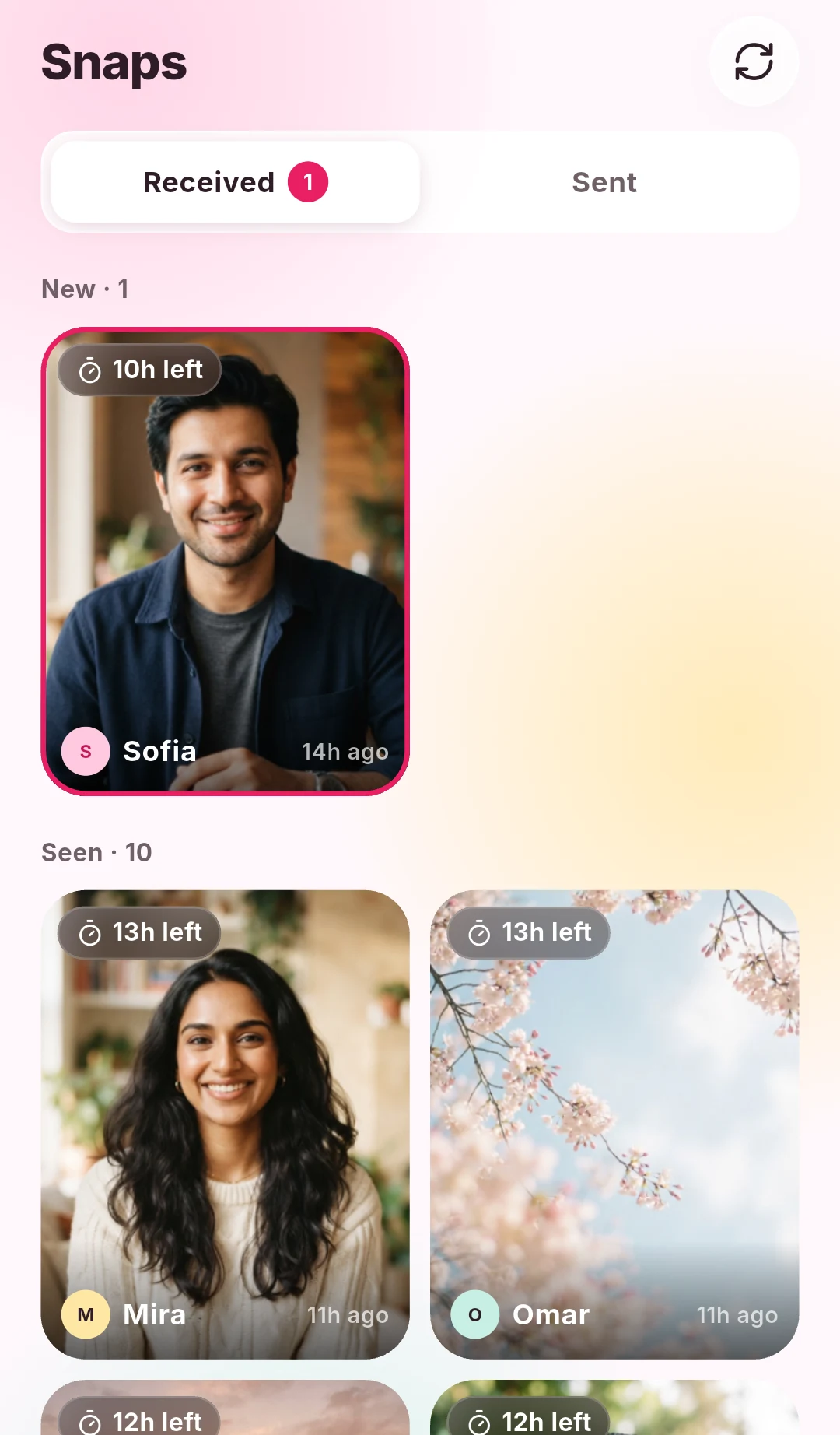
DuoFrame snaps expire 24 hours after they are sent. An old snap disappearing is expected behavior, rather than a sign that the widget has stopped working.
If DuoFrame is missing from the widget list
Check that the app is installed and that you have opened it at least once. Close the widget picker and try again. If it is still missing, check Google Play for an app update, then restart the phone.
Some home screen apps handle widgets differently. If you use a custom launcher, consult its widget instructions or try the phone’s default launcher to narrow down the problem.
If a photo is not updating
Open DuoFrame and check the inbox first. If the photo is missing there too, confirm your internet connection, friendship status, and that the sender completed the send. A photo older than 24 hours may already have expired.
If the photo appears in the app but not the widget, reopen the home screen or remove and re-add the widget. Check the phone’s battery and background activity settings for DuoFrame; restrictive settings can delay updates. You do not need to disable battery protection for every app.
Notification permission controls alerts for incoming snaps. Check it separately if photos arrive but you are not being notified. When reporting a persistent issue through the app’s support contact, include your phone model, Android version, app version, and whether the inbox updates.